RIEGL VZ-i Series
Control your RIEGL VZ-i Series laser scanner system remotely
RIEGL International · com.riegl.vziseries



UpdatedJun 9, 2024
PublishedApr 2, 2023
Packagecom.riegl.vziseries
MD5aa6906567002710c40802b892393e75d
SHA1 (signer)9B:76:78:1F:DE:16:8C:FE:05:9F:24:0D:67:FA:D3:D0:F6:FE:4E:19
Signed byCN=, O=RIEGL International, L=, C=AT
Architecturesx86-64, armeabi-v7a, arm64-v8a
Malware scanTRUSTED
Websitehttp://www.riegl.com/vzi-app
Contact[email protected]
What's new
Fixes a Problem in the Android package.
Description
The RIEGL VZ-i Series App allows you to control your RIEGL VZ-i Series laser scanner system remotely. The Graphical User Interface (GUI) of the laser scanner will be displayed on the screen of your device.
Features:
>> Connection to the scanner via local or remote access
>> Remotely control the scanner from your device
Additional App Info:
Local Access:
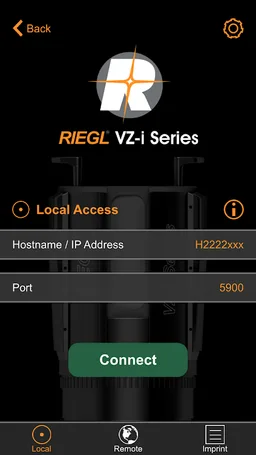
Local access allows you to control your RIEGL VZ-i Series laser scanner with the RIEGL VZ-i Series App if both, the device running the app and the laser scanner are in the same local area network and if the scanner is configured to grant remote access. The local area network (LAN) can be a WLAN (Wi-Fi) network the laser scanner is connected to, or a WLAN network provided by the scanner itself, or a wired local area network via Ethernet cabling.
When connecting to the laser scanner you have to identify the specific laser scanner by its IP address or its network name, e.g., H2221200. The standard port number is 5900 but you might have to change this to a non-standard port in the range from 5901 to 5999 to circumvent restrictions imposed by local area network rules.
An example of when you might want to control your laser scanner via RIEGL VZ-i Series App is: The scanner is mounted on the roof of a vehicle while you control it comfortably from inside the vehicle.
Remote Access:
Remote access provides you the ability to control your laser scanner from anywhere in the world as long as both the laser scanner and the platform running RIEGL VZ-i Series App have internet access. Additionally, granting remote access has to be activated and a proper password has to be set on the laser scanner to protect it against unauthorized access. We strongly recommend using a “strong” password that cannot be easily guessed.
To connect to a laser scanner via remote access, just enter the unique name of the laser scanner, which is the serial number of the instrument, e.g., H2221200 and the password.
A typical example of when to use remote access is a laser scanner being part of a fixed remote installation, acquiring data automatically. You can then easily check proper operation of the scanner by connecting to the scanner via remote access.
Features:
>> Connection to the scanner via local or remote access
>> Remotely control the scanner from your device
Additional App Info:
Local Access:
Local access allows you to control your RIEGL VZ-i Series laser scanner with the RIEGL VZ-i Series App if both, the device running the app and the laser scanner are in the same local area network and if the scanner is configured to grant remote access. The local area network (LAN) can be a WLAN (Wi-Fi) network the laser scanner is connected to, or a WLAN network provided by the scanner itself, or a wired local area network via Ethernet cabling.
When connecting to the laser scanner you have to identify the specific laser scanner by its IP address or its network name, e.g., H2221200. The standard port number is 5900 but you might have to change this to a non-standard port in the range from 5901 to 5999 to circumvent restrictions imposed by local area network rules.
An example of when you might want to control your laser scanner via RIEGL VZ-i Series App is: The scanner is mounted on the roof of a vehicle while you control it comfortably from inside the vehicle.
Remote Access:
Remote access provides you the ability to control your laser scanner from anywhere in the world as long as both the laser scanner and the platform running RIEGL VZ-i Series App have internet access. Additionally, granting remote access has to be activated and a proper password has to be set on the laser scanner to protect it against unauthorized access. We strongly recommend using a “strong” password that cannot be easily guessed.
To connect to a laser scanner via remote access, just enter the unique name of the laser scanner, which is the serial number of the instrument, e.g., H2221200 and the password.
A typical example of when to use remote access is a laser scanner being part of a fixed remote installation, acquiring data automatically. You can then easily check proper operation of the scanner by connecting to the scanner via remote access.
Required features
- Faketouch android.hardware.faketouch
Permissions (3)
RIEGL VZ-i Series requests the following Android permissions:
- Access Network State android.permission.ACCESS_NETWORK_STATE
- Internet android.permission.INTERNET
- Write External Storage android.permission.WRITE_EXTERNAL_STORAGE