おサイフケータイ アプリ
The Osaifu-Keitai app is an app that lists and introduces Osaifu-Keitai compatible services. You can use other functions required to use Osaifu-Keitai.
FeliCa Networks, Inc. · com.felicanetworks.mfm.main


UpdatedMar 3, 2026
PublishedFeb 23, 2023
Packagecom.felicanetworks.mfm.main
MD58557007c1e484eae3c6fc29231a7d40f
SHA1 (signer)1E:CA:20:4F:4E:61:18:17:FD:E8:FA:A3:7B:D7:47:DD:EB:96:BC:FB
Signed byDC=felicanetworks, DC=com
Malware scanTRUSTED
Contact[email protected]
Privacy policyView
What's new
■更新履歴
Ver. 36.26.16
・軽微な修正を行いました。
●おサイフケータイでお困りの方はこちら●
https://ap.pitsquare.jp/osaifu/
Ver. 36.26.16
・軽微な修正を行いました。
●おサイフケータイでお困りの方はこちら●
https://ap.pitsquare.jp/osaifu/
Description
In addition to performing the initial setup required to start using Osaifu-Keitai, you can view a list of your current Osaifu-Keitai-compatible services, such as electronic money, transportation tickets, and membership cards. You can also receive notifications and receive special offers, and read your IC card balance.
This app is also required for using apps for iD and QUICPay (when setting up through apps like Google Wallet), the Mobile PASMO app, the Mobile Suica app, and apps that handle Mobile Suica, as well as the Mobile ICOCA app.
■Features
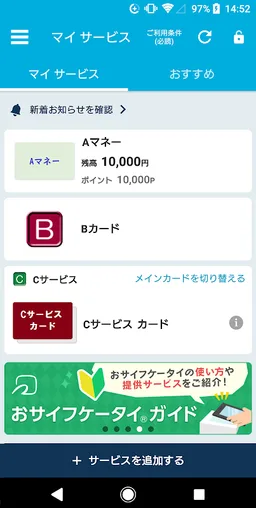
- My Services
- Displays a list of services you've installed or configured.
- Displays the balance of your current electronic money account.
- Press and hold a displayed service to rearrange its display order.
- Card Display
- Tap "Check/Switch Primary Card" or ">" to view information about the card for the service you're using (including links to each service provider).
- Switch your primary card. (iD, Mobile Suica, Mobile PASMO, Mobile ICOCA)
- Deposit and receive cards for your current service when changing your phone model (Mobile PASMO, Mobile Suica, Mobile ICOCA)
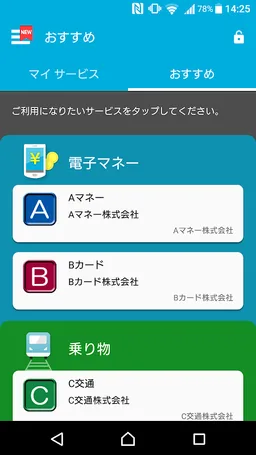
- Recommended
- Select the service you want to use and view an overview of the required apps from Google Play and setup instructions.
- Notifications
- Display a list of notifications you've received.
- Read your IC card balance
- Read your IC card balance.
- Frequently Asked Questions
- Information on changing your phone model.
- Lock settings
- Display the smartphone settings screen for locking the Osaifu-Keitai function.
- Display service introduction sites.
- Display campaign sites.
- Notifications when holding your phone over your mobile phone (※1).
- Initial Settings
- Update service display information
- Support & Terms of Use
- Memory Usage
- About Osaifu-Keitai
- Terms of Use
- Version Information
- Settings
- Notification Settings
- Disable Information Acquisition When Holding Your Phone Over Your Phone
- Notification Settings When Holding Your Phone Over Your Phone
- Google Account Switch Notification Settings
- IC Card Scan Screen Restriction Settings
- Log in with Google, Display Google Account While Logged In, Display Account Switch History
, etc.
■ Usage Notes
- This app can be used with Osaifu-Keitai-compatible smartphones. (■ Check Compatible Models)
- This app uses communication.
- We recommend updating to the latest app version when using this app. There may be limitations on available features and Osaifu-Keitai-compatible services. Please update to the latest app version and check before contacting us regarding the use of this app.
- Osaifu-Keitai-compatible services, such as electronic money, are provided by each service provider. For details on setting up and using each service, please refer to the information provided by each service provider.
- Compatible models for this app and each Osaifu-Keitai-compatible service differ. Please refer to the information provided by each service provider.
- IC cards that support IC card balance scanning include Rakuten Edy, nanaco, WAON, and public transportation IC cards. *Some cards are not compatible.
If the card is difficult to read, try moving the IC card away from the reader and holding it up again. Try changing the orientation of the IC card, slightly shifting it, or increasing the distance between the IC card and your phone. It may not respond well on some devices.
- "Sign in with Google" is required to use iD, QUICPay, Mobile PASMO, Mobile Suica, and apps that handle Mobile Suica.
- Also, to receive your Mobile PASMO, Mobile Suica, or Mobile ICOCA after changing your phone, you'll need to "Sign in with Google" using the Google account you used to "Sign in with Google" (*) to this app when registering for the service you use.
- In older versions of this app, "Sign in with Google" is on the "Account Linking" screen.
- For information on checking the status of "Sign in with Google" on this app and how to use it, please refer to the FAQ.
- For information on checking and restoring your Google account name (ID), email address, and password, and for instructions on two-factor authentication, please visit the Google website.
https://support.google.com/accounts/troubleshooter/2402620?hl=ja&ref_topic=3382255
*For inquiries regarding the Osaifu-Keitai app, please contact [email protected]. This does not support inquiries regarding checking or restoring your Google Account ID, email address, or password, or regarding two-factor authentication. Please check the Google website above.
- On some devices, changing the screen font size in the Android OS settings may prevent the app from launching. If this occurs, please update to the latest version (app update).
- To use Osaifu-Keitai by holding it close to your device, you must turn on NFC. This is different from the "Reader/Writer, P2P" setting.
*1 "Hold-up Notifications" is a feature that notifies you of balance changes and other information in the notification display on your phone when you hold your phone over an electronic money reader. (*2) Whether or not you receive a notification and the content of the notification may vary depending on the type of electronic money you use, the details of the transaction, how you hold your phone over your mobile phone, the state of your mobile phone, and other factors. Accuracy is not guaranteed, so please use this information for reference only.
*2 If you want to stop "wave notifications," turn "wave notification settings" OFF in this app's settings. Also, if you want to receive notifications again after stopping them, turn it ON.
On some models, when turning "wave notification settings" ON, you will need to exclude this app from battery optimization. To do this, go to your phone's Settings → Apps and notifications → Advanced settings → Special app access → Battery optimization, select "All apps" from the drop-down menu, and set the Osaifu-Keitai app to "Do not optimize."
■ Frequently Asked Questions
・Tap the three lines in the upper left corner of the app screen → Frequently Asked Questions
・ Frequently Asked Questions | Osaifu-Keitai Guide
https://ap.pitsquare.jp/osaifu/help/index.html
■ Compatible Models (Latest Version of this App)
Osaifu-Keitai-compatible smartphones running Android OS version 6.0.0 or higher
・However, the following models are not compatible with this app.
(So-called "Galaho" mobile phones such as Docomo mobile phones (sp mode), 4G LTE mobile phones (KDDI), and 4G mobile phones (Softbank), as well as models that are not compatible with the "Google Play Services" app provided by Google LLC.)
※ "Osaifu-Keitai" is a registered trademark of NTT Docomo, Inc.
※ "Galaho" is a registered trademark of KDDI Corporation.
※ The service and app names listed above are trademarks or registered trademarks of their respective companies.
※ Portions of the content on this page are reproduced from content created and provided by Google and used under the terms of the Creative Commons Attribution 3.0 License.
This app is also required for using apps for iD and QUICPay (when setting up through apps like Google Wallet), the Mobile PASMO app, the Mobile Suica app, and apps that handle Mobile Suica, as well as the Mobile ICOCA app.
■Features
- My Services
- Displays a list of services you've installed or configured.
- Displays the balance of your current electronic money account.
- Press and hold a displayed service to rearrange its display order.
- Card Display
- Tap "Check/Switch Primary Card" or ">" to view information about the card for the service you're using (including links to each service provider).
- Switch your primary card. (iD, Mobile Suica, Mobile PASMO, Mobile ICOCA)
- Deposit and receive cards for your current service when changing your phone model (Mobile PASMO, Mobile Suica, Mobile ICOCA)
- Recommended
- Select the service you want to use and view an overview of the required apps from Google Play and setup instructions.
- Notifications
- Display a list of notifications you've received.
- Read your IC card balance
- Read your IC card balance.
- Frequently Asked Questions
- Information on changing your phone model.
- Lock settings
- Display the smartphone settings screen for locking the Osaifu-Keitai function.
- Display service introduction sites.
- Display campaign sites.
- Notifications when holding your phone over your mobile phone (※1).
- Initial Settings
- Update service display information
- Support & Terms of Use
- Memory Usage
- About Osaifu-Keitai
- Terms of Use
- Version Information
- Settings
- Notification Settings
- Disable Information Acquisition When Holding Your Phone Over Your Phone
- Notification Settings When Holding Your Phone Over Your Phone
- Google Account Switch Notification Settings
- IC Card Scan Screen Restriction Settings
- Log in with Google, Display Google Account While Logged In, Display Account Switch History
, etc.
■ Usage Notes
- This app can be used with Osaifu-Keitai-compatible smartphones. (■ Check Compatible Models)
- This app uses communication.
- We recommend updating to the latest app version when using this app. There may be limitations on available features and Osaifu-Keitai-compatible services. Please update to the latest app version and check before contacting us regarding the use of this app.
- Osaifu-Keitai-compatible services, such as electronic money, are provided by each service provider. For details on setting up and using each service, please refer to the information provided by each service provider.
- Compatible models for this app and each Osaifu-Keitai-compatible service differ. Please refer to the information provided by each service provider.
- IC cards that support IC card balance scanning include Rakuten Edy, nanaco, WAON, and public transportation IC cards. *Some cards are not compatible.
If the card is difficult to read, try moving the IC card away from the reader and holding it up again. Try changing the orientation of the IC card, slightly shifting it, or increasing the distance between the IC card and your phone. It may not respond well on some devices.
- "Sign in with Google" is required to use iD, QUICPay, Mobile PASMO, Mobile Suica, and apps that handle Mobile Suica.
- Also, to receive your Mobile PASMO, Mobile Suica, or Mobile ICOCA after changing your phone, you'll need to "Sign in with Google" using the Google account you used to "Sign in with Google" (*) to this app when registering for the service you use.
- In older versions of this app, "Sign in with Google" is on the "Account Linking" screen.
- For information on checking the status of "Sign in with Google" on this app and how to use it, please refer to the FAQ.
- For information on checking and restoring your Google account name (ID), email address, and password, and for instructions on two-factor authentication, please visit the Google website.
https://support.google.com/accounts/troubleshooter/2402620?hl=ja&ref_topic=3382255
*For inquiries regarding the Osaifu-Keitai app, please contact [email protected]. This does not support inquiries regarding checking or restoring your Google Account ID, email address, or password, or regarding two-factor authentication. Please check the Google website above.
- On some devices, changing the screen font size in the Android OS settings may prevent the app from launching. If this occurs, please update to the latest version (app update).
- To use Osaifu-Keitai by holding it close to your device, you must turn on NFC. This is different from the "Reader/Writer, P2P" setting.
*1 "Hold-up Notifications" is a feature that notifies you of balance changes and other information in the notification display on your phone when you hold your phone over an electronic money reader. (*2) Whether or not you receive a notification and the content of the notification may vary depending on the type of electronic money you use, the details of the transaction, how you hold your phone over your mobile phone, the state of your mobile phone, and other factors. Accuracy is not guaranteed, so please use this information for reference only.
*2 If you want to stop "wave notifications," turn "wave notification settings" OFF in this app's settings. Also, if you want to receive notifications again after stopping them, turn it ON.
On some models, when turning "wave notification settings" ON, you will need to exclude this app from battery optimization. To do this, go to your phone's Settings → Apps and notifications → Advanced settings → Special app access → Battery optimization, select "All apps" from the drop-down menu, and set the Osaifu-Keitai app to "Do not optimize."
■ Frequently Asked Questions
・Tap the three lines in the upper left corner of the app screen → Frequently Asked Questions
・ Frequently Asked Questions | Osaifu-Keitai Guide
https://ap.pitsquare.jp/osaifu/help/index.html
■ Compatible Models (Latest Version of this App)
Osaifu-Keitai-compatible smartphones running Android OS version 6.0.0 or higher
・However, the following models are not compatible with this app.
(So-called "Galaho" mobile phones such as Docomo mobile phones (sp mode), 4G LTE mobile phones (KDDI), and 4G mobile phones (Softbank), as well as models that are not compatible with the "Google Play Services" app provided by Google LLC.)
※ "Osaifu-Keitai" is a registered trademark of NTT Docomo, Inc.
※ "Galaho" is a registered trademark of KDDI Corporation.
※ The service and app names listed above are trademarks or registered trademarks of their respective companies.
※ Portions of the content on this page are reproduced from content created and provided by Google and used under the terms of the Creative Commons Attribution 3.0 License.
Required features
- Faketouch android.hardware.faketouch
Permissions (19)
おサイフケータイ アプリ requests the following Android permissions:
- Access Adservices Ad Id android.permission.ACCESS_ADSERVICES_AD_ID
- Access Adservices Attribution android.permission.ACCESS_ADSERVICES_ATTRIBUTION
- Access Network State android.permission.ACCESS_NETWORK_STATE
- Foreground Service android.permission.FOREGROUND_SERVICE
- Foreground Service Special Use android.permission.FOREGROUND_SERVICE_SPECIAL_USE
- Internet android.permission.INTERNET
- Nfc android.permission.NFC
- Nfc Transaction Event android.permission.NFC_TRANSACTION_EVENT
- Post Notifications android.permission.POST_NOTIFICATIONS
- Receive Boot Completed android.permission.RECEIVE_BOOT_COMPLETED
- Use Biometric android.permission.USE_BIOMETRIC
- Use Fingerprint android.permission.USE_FINGERPRINT
- Wake Lock android.permission.WAKE_LOCK
- Com Felicanetworks Lockapp Provider Read Lock Status com.felicanetworks.lockapp.provider.READ_LOCK_STATUS
- Com Felicanetworks Mfc Permission Mfc Access com.felicanetworks.mfc.permission.MFC_ACCESS
- Com Felicanetworks Mfm Main Dynamic Receiver Not Exported Permission com.felicanetworks.mfm.main.DYNAMIC_RECEIVER_NOT_EXPORTED_PERMISSION
- C2dm Permission Receive com.google.android.c2dm.permission.RECEIVE
- Finsky Permission Bind Get Install Referrer Service com.google.android.finsky.permission.BIND_GET_INSTALL_REFERRER_SERVICE
- Gms Permission Ad Id com.google.android.gms.permission.AD_ID